Showing posts with label Technology Tip. Show all posts

Friday, June 17, 2016

Technology Tip # 8 (Follow-up on # 7): Getting Drowsy zZzZ

Of course, there are times where we can't stop using our devices. And sometimes, those times fall when we're about to sleep. But on this post according, to my knowledge, there's a program in the computer that lowers blue rays that the monitor emits. When we're talking about smartphones, specifically Android, I know an app that can do just the same. But first, we're talking about the computer program. And also some apps on mobile devices to help you sleep at night. Now you and your device are sleeping buddies!

f.lux

This computer program, as was discussed earlier, lowers the blue rays your monitor emits. I don't know exactly how it does it but from my experience, it makes the color orange more dominant than others. Which actually makes sense because blue colors or rays are significantly lower. I can't exactly show the difference because screenshots are not affected by the program. But if you wanted to see comparisons, go the the f.lux website. The color of the background compared to a white colored background is the difference. But you can further the orange color if you wanted to. Configurable at the program's settings after installing. You can set how low you want the blue rays to be, would it only be subtle or you want it to be almost incandescent, or simulate the color of a candle it's your choice! f.lux also uses location to lower the blue rays when the sun sets. It does it automatically for you! But you have to set your location first for the automatic function to work.

CF.lumen

This Android app also does what f.lux and other similar programs/apps does. It lowers the blue rays your android device/s emits. But this app is more customizable; You can set the color the screen will change into. Three sliders as per usual, red, green and blue. for example green or blue. You can also set how saturated the color is, will it be pure green or a combination of both, it's your combination! A word of caution though, CF.Lumen requires a rooted device. If you don't want your device rooted, you can download other apps in the Play Store that also does the same. But this app is the most customizable one that I have used. It requires root access because it will automatically change the colors when the sun sets. The same as f.lux.

Pzizz

Another mobile app that actually helps you sleep and/or take a nap at the middle of the day. If you wanted to snatch some minutes from your work to take a nap, then this app is for you! Seriously talking, Pzizz will help you fall asleep, or at least take a nap when you have the (proper) time. It uses relaxing music, binaural beats to entertain your brain wave, some instrumental sounds at the background, and truly relaxing nature sounds like chirps of bids and waves at the beach. All of these and more can be viewed in detail at their website. Although there are other apps that also have the features of Pzizz, this is the most effective that I have used.
Want to know what binaural beats and/or to know more of it? You can visit this website about binaural beats, monaural tones, and isochronic tones. All of them three are similar but they have different effects, and people prefer one rather than the other.

Anyway, speaking of brainwave signals and beats, These are the things that helps me get drowsy and actually help me sleep better. I hope these tips also helps you get drowsy and have better sleep. One more tip before I end this post, "Quality sleep is better then quantity sleep". More on how to sleep better and not longer in my next post!

Thursday, January 1, 2015

Technology Tip # 7: Why Don't We Feel Drowsy When Using Our Devices?

This is someone that can easily answer in a flick of a finger. What I'm saying is the explanation scientifically. So, let's start with the basics.

First is the screen you're looking at. It's a LCD(Liquid Crystal Display) screen with implemented technologies like AMOLED. There are 2 types of touchscreens. There are resistive, there are capacitive. The difference is that the resistive needs more pressure so that the touch will be registered. Compared to the capacitive. Capacitive are what composes most of touchscreens today.
LCD emit RGB lighting. RGB stands for Red Green Blue which are the colors that makes up an image. Now, research shows that when we are directed with blue light ray to our eyes, our minds somehow wakes up.

And I've proven that because I have an app in my smartphone with a blue background. I was sleepy and when I opened that app, my sleepiness decreased. The effect lasts long enough that it makes you wanna use your device again because you're not drowsy.

Sunday, December 21, 2014

Technology Tip #6: How Temperature is Generated from our Devices

What am I talking about? How heat is generated? Are you okay Micro? That's self explanatory! It heats up because you use it. It's that simple! It just that....

Of course I know how heat is generated. What I'm saying is how it is generated scientifically.

Okay lets start by the most common thing that generates heat, Energy.
Energy as we all know cannot be created nor destroyed but, it only transfers to other energies or transformed. Energy is coming from power which is the electrons that flows through your device. Now, the amount of electrons required to power up a component depends on how much ohms or resistance that conductor has. The grater the resistance, the greater amount of electrons which means more power and more energy. As it travel through the conductor, power generates heat energy that's why it creates heat. The more power, the more heat. Now you getting the point? If there are no resistance, then there would be no heat because lesser power is required.

Is there ever a conductor that have no resistance? Yes there is! Some group of researchers and scientists are developing something that doesn't have any resistance. That can be the future of computers which means, no more heat output and throttling! But in order to achieve the no-resistance state, the "thing" must be in absolute zero temperature. That's the main objective now, how to sustain absolute zero temperature without the assistance of cold environment.

If you wanted to know more, search Superconductivity.

Monday, December 1, 2014

Technology Tip # 5: The Best Location for your Task Bar

For me, the best location for the task bar in Windows PC's are at the left and right side. Because, the width of the monitor is much larger than its height. This is my scientific explanation on why it is better to move your taskbar to the left or the right. The only disadvantage that I know is that you have to move your mouse more to the left or right edge of the screen depending on the location of your taskbar. In Windows 8, you don't have to point to the top-right or top-left corner of the screen to go to the start menu. The start screen is still there at the bottom-left. You don't need to adjust where to point your mouse when going to the start screen when you move the taskbar.

But still, it's you opinion on where is the best location for the taskbar. In my analysis, the left and right sides are the best location,. Regardless of where the start button is.

Sunday, November 23, 2014

Technology Discipline

What is Technology Discipline?

Accdg. to my own definition, it is the art of controlling oneself from technology. E.g. don't use your phone when talking to someone, learn to turn off your gadgets when it is time to sleep.

What I mean is, technology makes us anti-social and sometimes becomes a great distraction. I see some people use their phones instead of talking to people. Chatting is not always okay because you don't know what the person is really going through or what is the real reaction. Compare it to personal talking, you get to see his/her reaction to what you said and you get an immediate reply. Imagine this, when you're talking to someone then the person you're talking to uses his/her phone, then you will surely lose interest in talking to him/her because of the phone. And this applies to you too, the other person will lose interest in talking to you when you use your phone while talking. Except, that is, when what you're talking about includes usage of phones. Then that is perfectly normal!

Learn when to use your devices. These things can and will destroy you if you allow them to be your way of living life. Here's a video I found on the web that tells something about technology discipline:


Sunday, October 19, 2014

Technology Tip # 4: Temperatures

Some people don't usually care about the temperatures of their devices. While others are freaked out to see the temperatures of their devices go up the numbers. These things are not that important to other people, it really does matter.

Temperatures of devices affect the performance of the device. The chips and the electronics that are installed in your devices are all configured to throttle down their power input especially computers. Smartphones and tablets are not usually configured this way. It goes like this:

More power = more performance = more heat
Less power = less performance = safer temperatures

They throttle themselves to be saved from the doom of melting. People often don't know this but now you do! You notice why the game runs fast at first then after about 1-2 hour/s of gameplay, the game just got slower and you'll be freaked out to know that something bad happened. That's just your video card saving itself from doom!

Another note to temperatures is that depending on the throttling powers of your devices, the electronics may have reduced lifetime. Because of heavy operation and temperatures, the chips will wear down when it conducts heat. You can't deny physics!

Sunday, August 24, 2014

Technology Tip # 3: Laptop Batteries

Laptop batteries is the same as the previous post about batteries but, there's an exception. Some people like it playing/using their laptops without the battery and with plugged in ac. What we'll discuss in this post is how will it affect the laptop, it's positive and negative, and my opinion.

If you want to use your laptop without its batteries:
Advantages
Full laptop power - set your power options to maximum performance.
No worries for battery care - you remember what I talked about when the battery is near full capacity?
Much less weight - Yeah, batteries is one of the most heaviest components of your laptop.

Disadvantages
Possible power interruption - power from your house may be interrupted and your laptop will turn off
Possible that the laptop will receive high or low voltage input - the adapter at the laptop's AC will regulate the power voltages that comes to your laptop however, chances are that the adapter will fail and Electro-Static Discharge will happen in your laptop.
Stationary

If you want to use your laptop with batteries attached:
Advantages
Mobile mode
No power interruptions
No high or low voltage input - because the battery is fitted with circuitry inside, it is sure that the voltages that the laptop receives is regulated. The voltage will first go through the battery, then that battery will regulate the voltage, then into the laptop.

Disadvantages
Always out of power - you get the idea
Laptop at its full weight w/ batteries -yeah, weight and more weight
Battery care applies - because you always have monitor the battery level, its sometimes frustrating


So, what do I choose you ask? I choose the w/ battery one. Why?
- Because it's much safer when you use your laptop and just charging it is how it was designed. It's not designed to use the AC adapter only. On the other hand, when I'm charging, I always take a look at my battery level. I always plug out the charger when my battery level reaches around 90% - 95%. I know it's frustrating but, it's better than getting your laptop damaged.

Correct usage of the charger
- The correct way of using the charger is to plug in the outlet first. Why? Because when you plugged in the laptop connector already, chances are, the electrons will charge to the cord and then straight to your laptop. When this happens, the voltage that the laptop receives will not be regulated.

Wednesday, July 30, 2014

Where Do I Get My Resources?

Some of you may be wondering where I get these things and tips. I get these from Google mostly. I look first at the address of the website to see if it is reliable and secure site for no viruses. Speaking of viruses, my next Technology tip will be about Security :)

Some of the things that I still don't know and just saw it and I was like, "Oh, why didn't I ever wonder what this is. Maybe it's something interesting". And when the video ends, I was like "Why didn't I researched for that before, this is very useful information in a shot time." Speaking of videos, Linus Tech Tips my best resource of information. Mostly from his educational "As Fast As Possible" educational videos which is, what I said earlier, "very useful information in  a very short time". He explains complicated things in a simple way. Please check his Youtube channel and make sure to give me a shout-out for referring you to him from my blog :)

How do i get to know his channel?
I first knew his channel when I was searching for evidence of the liquid screen protector. The "nano technology" things that is said to be stronger than a regular screen protector. Then I searched Youtube for the evidence then I get a few results. I looked at the title first before I watch the video to know that it is that things that I'm searching for. Then I saw his video, after the video, I looked at the comments. People were like saying technology things to be reviewed and I was like "Hmmmm, this is interesting comments". Then I took a look at this channel and BOOM! Linus Tech Tips.

Technology Tip # 2: Caring for your Hard Disks

Of all we know, this is where we store our files. The hard disk is literally a disk, it's spinning inside that block of metal that we hold when building our own PC. It's spins at around 7,000 - 15,000 RPMs when it is being used. So be careful when handling the hard disk.


For Laptops, the hard disks, in my opinion, installed are modified in such a way that it is designed to withstand weak bumps and basic moving. From everyday mobility to moving it from your house to your car, when you're handling it, then to your office. It's modified to withstand those and the makers of your laptop is expecting those scenarios.

As you can see in the image above, that is a opened hard disk. The disks in the middle is spinning when used and the arm that is reaching in the middle is the reader/scanner. That is the one that reads/writes in your disks. That is a multi layered hard disks. All modern hard disks are built this way that they are over one another. The distance between the disk and the reader is 0.002-inch (51-micron). Now you know what i'm talking about earlier. Physics states that when the hard disks spins, theres' something that happens around the disks that makes the distance between the disk and arm. And when the computer is shutting down, the arm will first stand aside then the hard disks will slow down. Look at my references for more details.

Is the hard disk spinning when the computer is sleeping?
From what I read, the hard disk is still spinning but at a slower rate. Because at the description is says, it uses much less power to the computer. How can you stop the hard disks from spinning?
1.) Go to control panel under the start menu. For Windows 8 and 8.1, right click windows in bottom-left and choose control panel.
2.) Click on "Power Options".
3.) Click on "Change plan settings" on the active power plan.
4.) Click on "Change advanced power settings".
5.) Scroll until you find "Hard disk" then click on the plus button and another plus button.
6.) Change to the desired values.

Will forcing the computer to shutdown damage the Hard Disk?
No, it will not damage the hard disk however; The data stored in the disk may be lost or get corrupted. This is different from unplugging the computer from the AC. But, you will hear a noise inside the computer which makes you worry more. Don't be troubled by this noise, it's just the arm returning to it's resting position and clapping to the base of the arm. Because of the safety feature that when power is lost, the arm will automatically return to it's resting position.(See reference below)

Does the remaining free space affect the Hard Drive?
Yes, it does affect the hard drive. First is your space is depleted(obviously). And reading speed is affected because the reader must read all the files that is stored in the disk rather than skip the "not filled spaces" ones.

What is Hard Disk Defragment/Defragmentation?
This is a trick in the hard disk. When you are storing files in the disk, the arm just puts it on where on the part on the disk is free space. Later on, when you try to access those files, the data is scattered all over the hard disk. Defragmentation makes these files that are stored everywhere be together by moving the data that is the continuation of the previous data next to that data. Making the read/write faster and not that complicated and scattered for the arm to search.

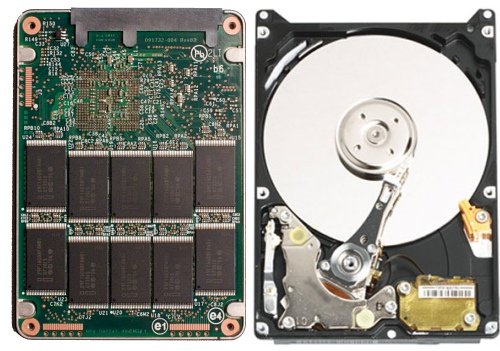
So, what's the difference of HDD(Hard Disk Drive) and SSD(Solid-State Drive)?

Image: SSD(Left), HDD(Right)

Let's just say that SSD's are much faster than HDD's because there's no moving parts.(Wow that's very simple)


Refereces:
http://forums.majorgeeks.com/showthread.php?t=
http://en.wikipedia.org/wiki/Flying_height

Thursday, July 24, 2014

Technology Tip # 1: Caring for your batteries

Starting this day, my posts may change from time-to-time. What I'm saying is that, I wanted to share things that I learn in life. Maybe you will also pick up a lesson from my views and philosophy. Most of these will be technology tips and tricks that some customers may not know. The general consumer may not know the trick to this and that. The people who just don't have the time to research because of their jobs and many other reasons. So, Let's Start!


NOTE: This post applies to Li-ion and Li-po batteries ONLY. If you wanted a video, scroll down to this post.

First of all, there are many kinds of batteries out there, the most popular are  Li-ion, stands for Lithium Ion. And Li-po, stands for Lithium Polymer.


First lesson is the charge percent of your battery. Your battery "may" lie about the current charge percentage that it currently have. This occurs when you are charging, the device is computing it's "predicted" percentage based on how powerful and many the amount of electrons that flow through your device. To return this to the accurate percentage, you have to do a "battery calibration". It is done by:
1.) Charge your battery up to 100% and let it stay plugged in for about 1 hour to ensure that it's really 100%
2.) Pull the AC power then discharge your device down until it turns off itself.
3.) Charge your device up to 100% full again. You can use your device while it's charging.

That's it! Your device is fully calibrated!


Second lesson is, what does the charge percent of your battery tells you. You want the charge level of your battery, as much as you wanted, near 100%. We say that it's cool because the battery will stay long. EEEEENK! You're wrong! A Battery at 100% is actually a way of saying that the battery is somewhat reducing it's lifetime capacity. Whenever we use the battery, we can't deny the fact that the battery, little by little, is reducing it's lifetime capacity; As much as any other things do(damn you physics!). What you can do is not to charge it up to 100% "But you said that when calibrating, charge it up to 100%" That is if you're thinking of calibrating your battery, you can disregard this tip. The sweet spot of the charge percent is around 40% - 80%. Why this percents? Because the electrons can flow freely around the battery whereas when it's full, some of them needed to discharge. The critical level of the battery is 20% because at this percent, the electrons inside becomes unstable. There's much space to move, so, the electrons may jolt inside.


Third lesson is, charging your battery. When you are charging your battery, make sure not to leave it charging all up to 100%. When you leave it plugged in, chances are, the battery will deform, getting bigger and bigger, that's why your battery is small one day and when you checked it again, it's bigger.


And possibly opens or pops out some of parts of your device


You never wanted that to happen. The battery gets bloated because the electrons inside is overflowing, forcing the physical form to deform and the other electrons will fit in. And if the physical holder is too bloated and stretched out, the battery may explode! Some chargers have a feature that when the battery is fully charged, it will turn off itself. 

Fourth and last lesson, the charge speed. You may notice that the charge rate of the battery gets slower overtime while it's charging. That's because the charge rate changes on how much percent the battery is charged. It charges faster when is below 10% and slower when it start getting up. This happens because it's one way of protecting the battery from overcharging.

Batteries! As explained by Linus(and also my reference)


Resources:
1.) http://www.gizmodo.com.au/2012/12/giz-explains-everything-you-need-to-know-about-batteries/
2.) http://www.howtogeek.com/172271/how-to-calibrate-your-laptops-battery-for-accurate-battery-life-estimates/